A Bumpy Start: Object 1
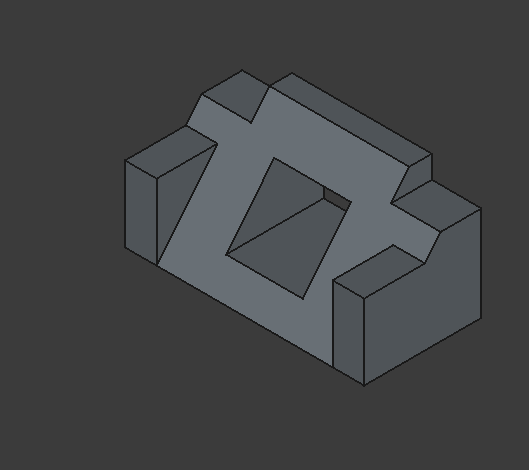
The tutorial shape was interesting to say the least. I struggled a lot with this one. I take my time learning a platform, so it took me forever to learn every tool, understand how to use them, and position them accurately. This meant that I had to go through the shape, many, many times, until I got it right. However, this was a positive experience because it helped me internalize FreeCAD’s mechanisms.
I followed the more complicated tutorial because it made more sense to me. The only different thing was for the coincidence constraints, I just had to press C because I could not find the shape, other than that, everything… in the end went smoothly for me.
Something... Useful? Object 2
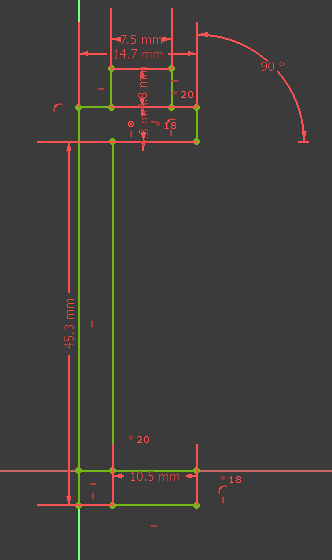
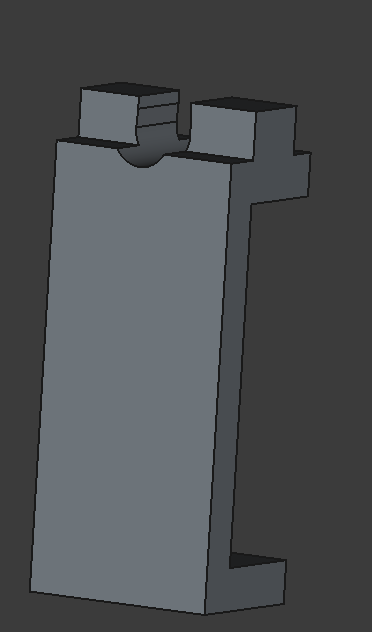
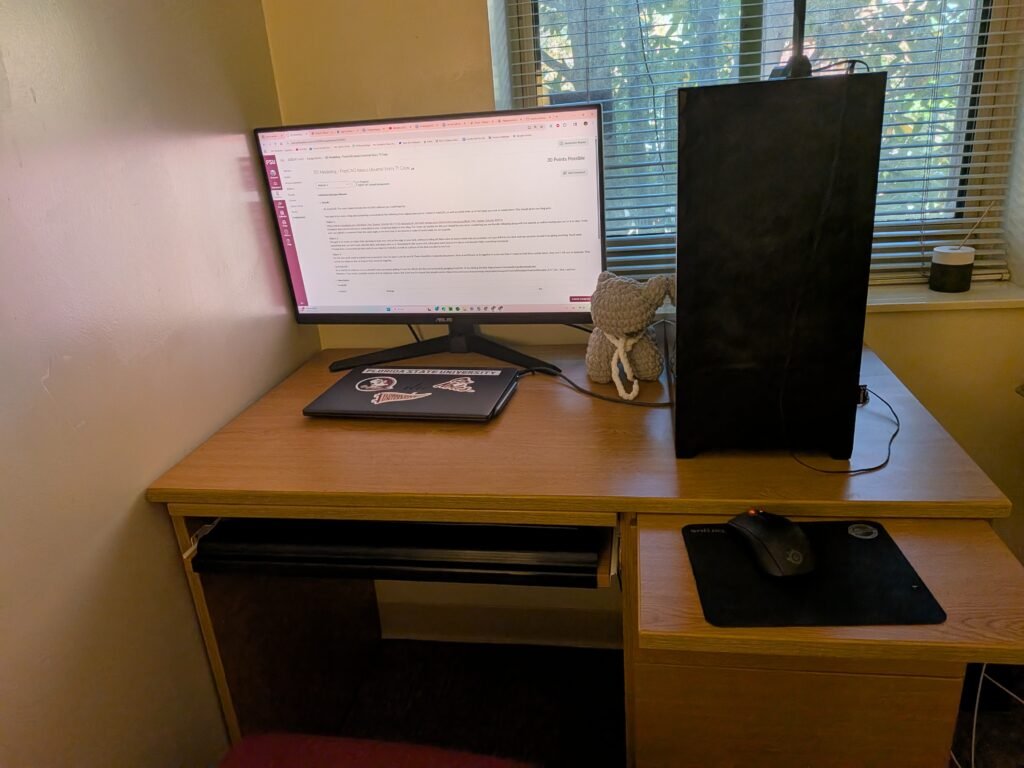
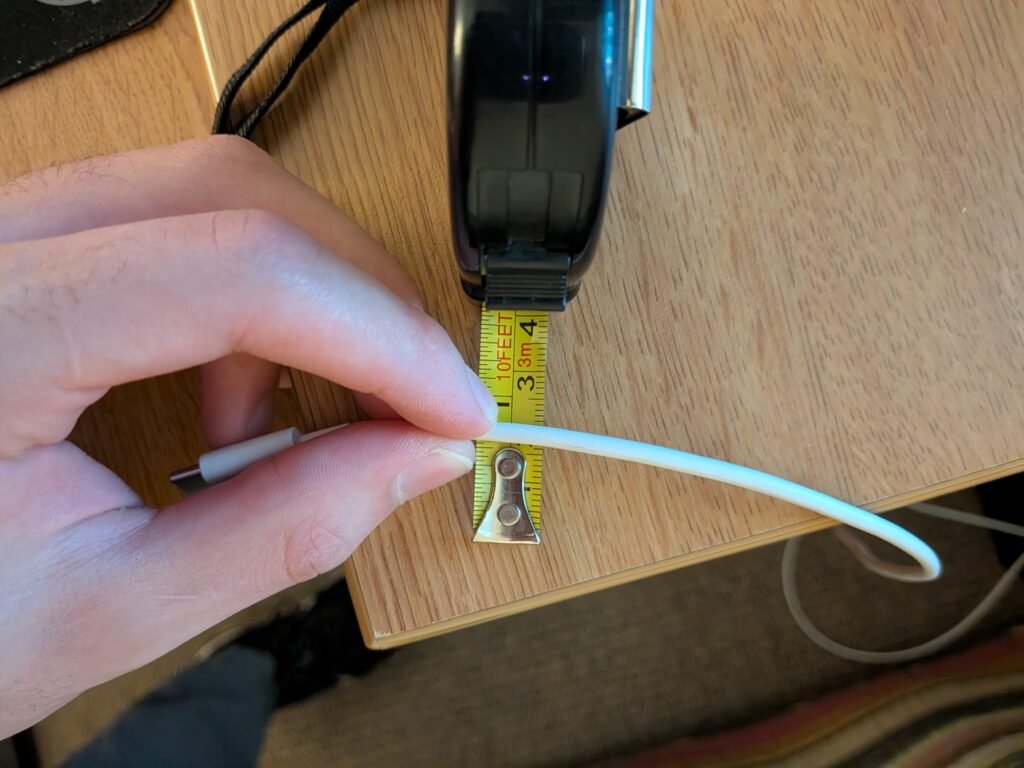
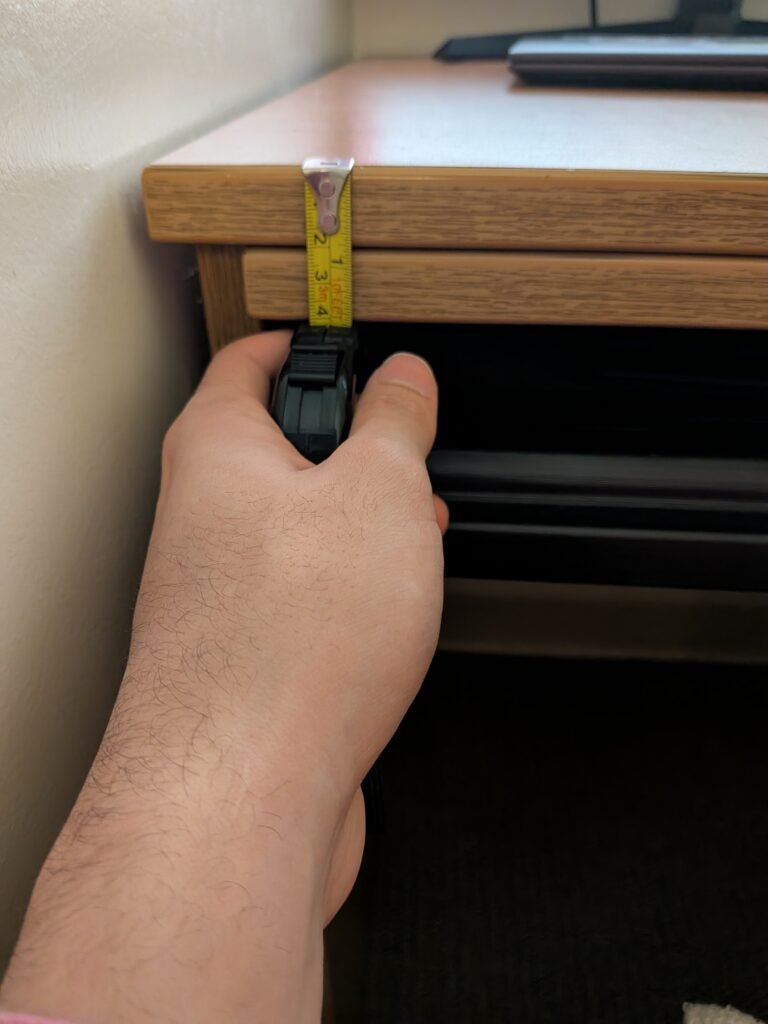
Ok, this is where the fun starts. Here you have two images of the measurements that I took, one of the diameter of the cable and the height of the edge of my desk. My desk is shaped in such a way that that was the only place that I could place it. Even though, in all honesty, I use a surge protector on the other side of the desk and I charge my devices there. For the sake of the assignment, let’s pretend that I would use that hard-to-reach angle.
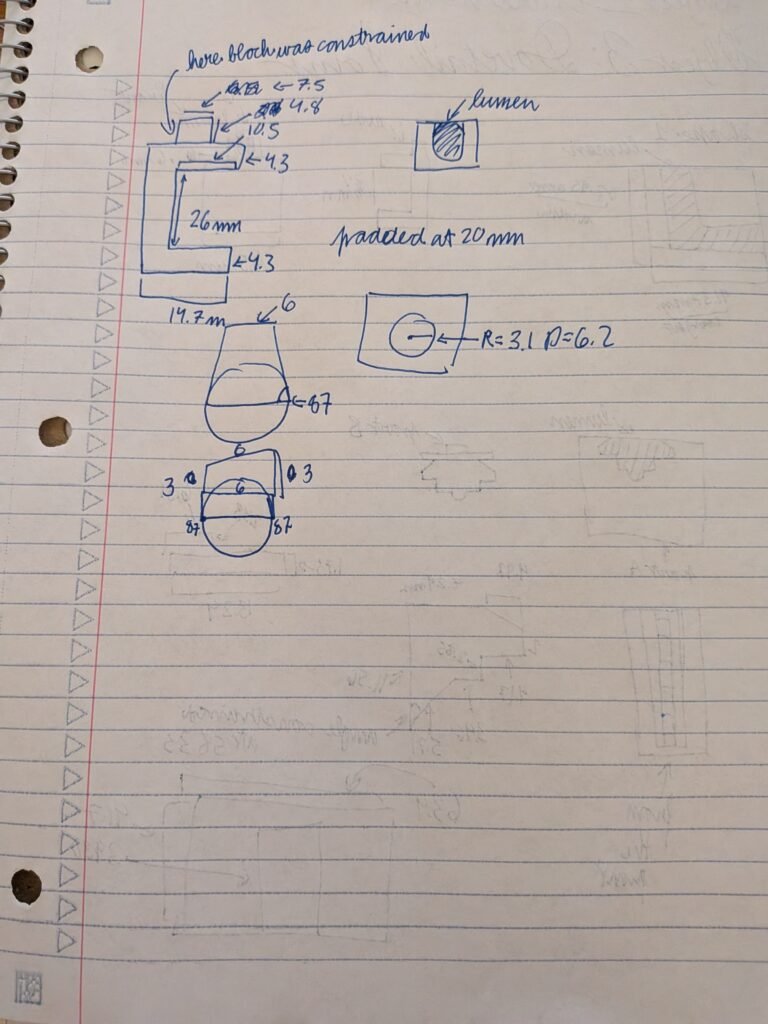
So for the measurements, they came out to be quite nice, or so I thought, but I made a mistake in the calculation of the grip. I had the original number of 26 mm, which was a bit over an inch, whereas the real number that I needed was 40 mm. This was an easy fix. I just had to edit the original sketch and move the hole for the shape, and all was well. I added in some wiggle room of 1 extra mm, so you would not have to force the object in and potentially break it.
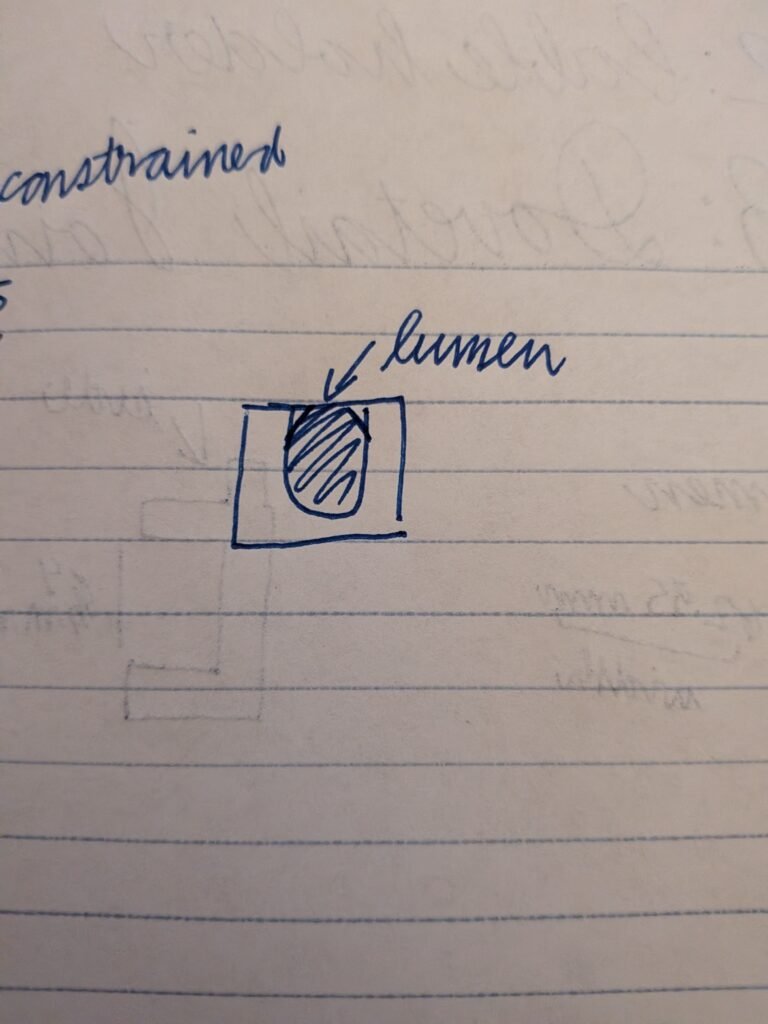
The same was done for the cable. I measured it at around 6 mm, so I created the inner circle with that in mind. Providing a bit of extra space so that when inside, it would have some wiggle room. I was not too generous with the top as I capped that at 6 mm because I want it to snap in the center and remain there. I was generous even with giving the diameter 6mm because I felt it was closer to 5.5mm. However, it should not be a problem either way.
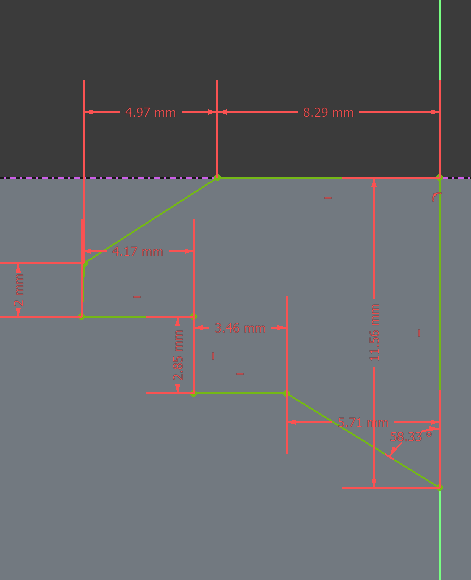
Making the bottleneck shape was quite fun. I like how the constraints work, and I even learned how to use the “Constrain Block” tool, which came in handy for the circle. There was no effective external geometry placement that I could have done to place it in the position I wanted. I also learned how to use angle constraints to ensure that the bottleneck shape would be even, and it also helped me have to constrain less of the shape later on with horizontal and vertical line constraints.
Though in my case, I don’t personally have a use for this object, I think it was very nice to make. I like how petite it looks and how it appears to be quite functional. I believe that, though its simplicity, it has functionality and a kind of enduring “beauty”
Art births all math
- I created the “C” shaped sketch of the app using the polyline tool. Then I used constraints to lock in the gaps.
2. After everything was constrained, I padded the stretch with a width of 20mm.
3. I then created a sketch of the cable holder and started to modify it to create a keyhole opening. - I used a pocket to create a tunnel for the cable.
Think Harder not Smarter: Object 3
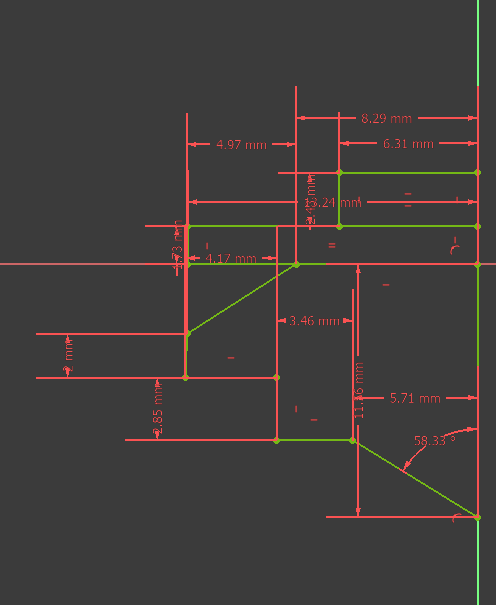
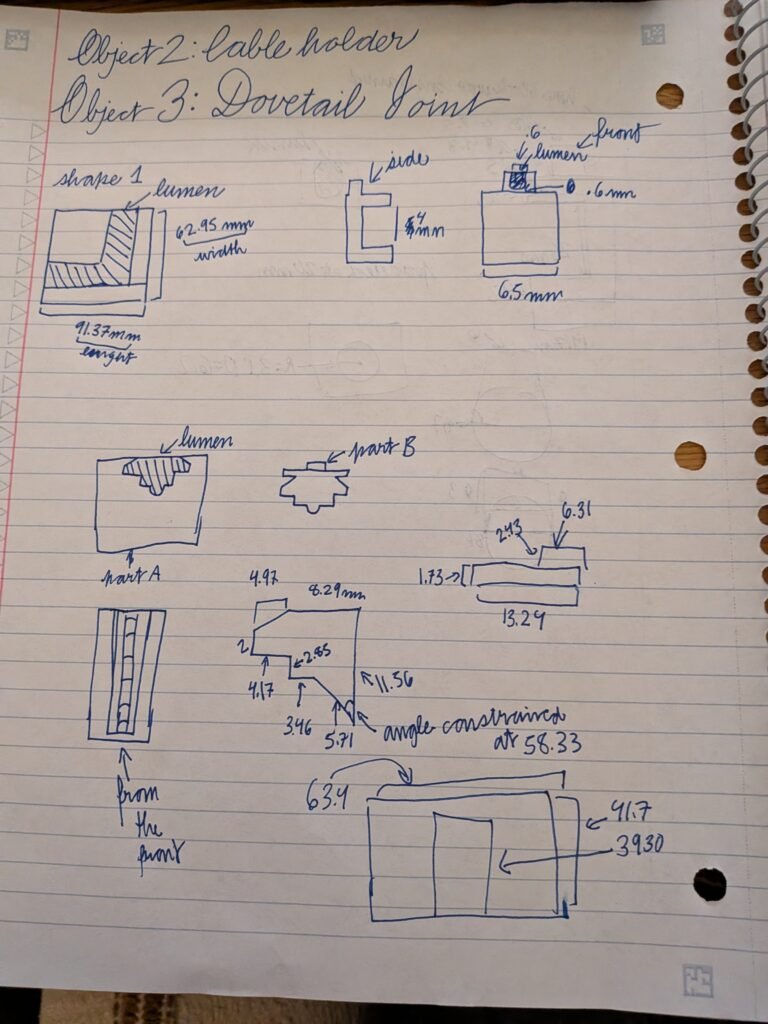
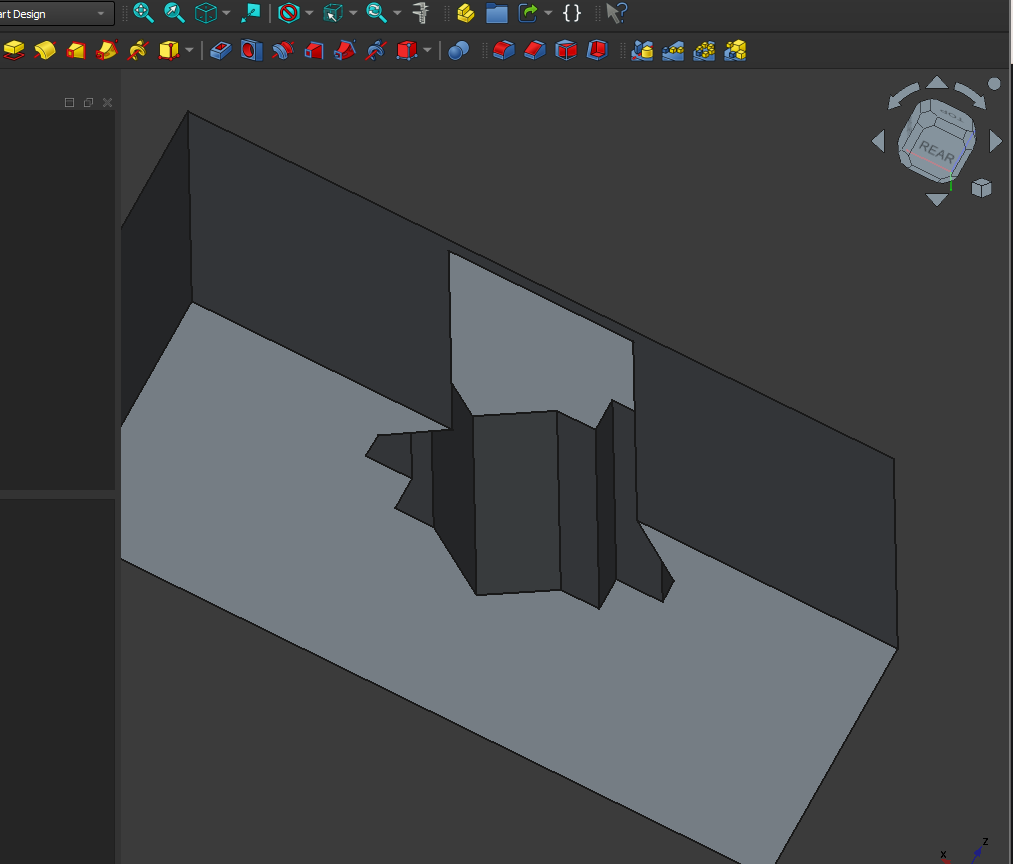
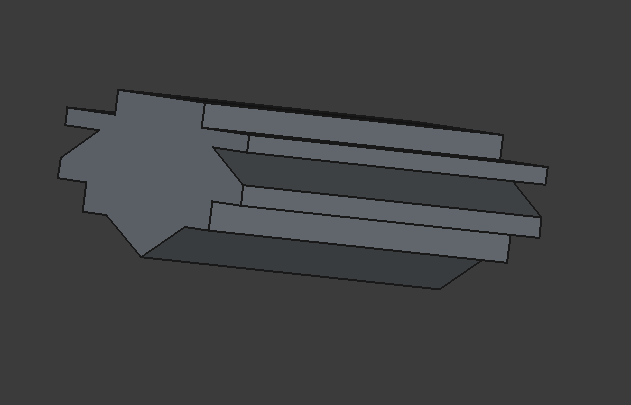
So, for object 3, I thought the best way to solve this assignment was to look at woodwork. That is why I labeled the first object “Dovetail Joint.” However, that would require me to create 3 shapes, but the structure would meet the other requirements. Then I thought it would be much smarter if I created a sliding joint. At first, I thought the instructions wanted me to create something like a Lego brick or a mechanism that would snap and fit so well that, from any angle, it would effectively function as one shape. However, after further review of the assignment instructions, they state clearly that the holder of the objects should be able “to hold them upside down, [so that] they won’t fall apart or separate.” In math terms, if you did a horizontal shift about the X axis, it would not turn over.
My design will hopefully be seen as meeting these requirements, even though it looks special. For extra security, I added a simple stopped slot to the design, meaning that it will also not fall if it is rotated about that specific angle.
I found this object more interesting to make than object 2, as I used very strange and specific measurements. I was better able to stack the shapes on top of each other for object b, and I already had practice making the second object from the first. I decided that to actually be able to slide it it I would have to create a little mini handle, but I also used that extra shape to reinforce the shape and ensure that it would not fall out.
One thing you will note is that I had a square-shaped button and not a rounded one. I did this on purpose because I thought that the harsh lines of the square would make the fit even tighter. Here, I was able to use traditional constraints (just the ones we learned from the tutorial with the angle constraint) to create the shape. I am content with the shape as I find it interesting to look at.
(Section title was purposeful)
More Measurements 🙁
Steps Taken:
1. I created a cube, constrained it, and padded it.
2. I then sketched out the empty slot and constrained it, and used the pocket tool. However, I made sure not to pocket all the way through the first shape to preserve the stopped slot mechanism. I then mirrored the shape.
3. I then proceeded to, in a separate document, create shape 2. I created the same shape as the first empty slot, but I used the Create rectangle tool to make 2 shapes on top of it for extra security.
4.Once the stretch was created, I padded it and mirrored it. Voilà, the shapes were both made to fit perfectly within each other.