Don't be a square
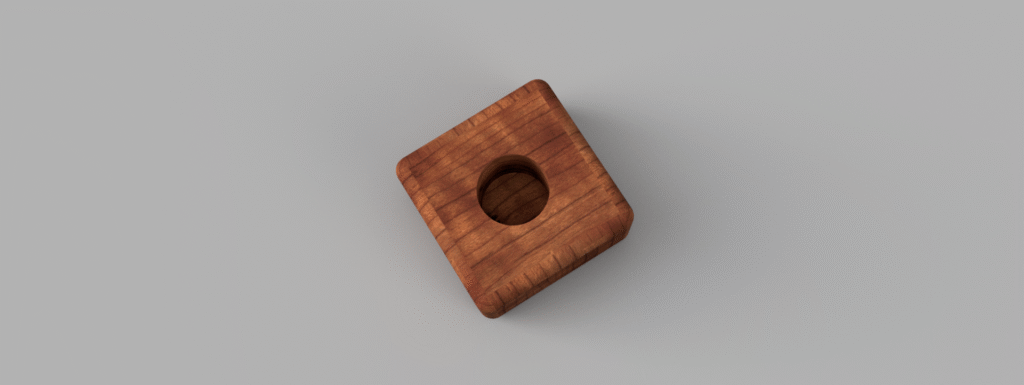
Ok, this was much more interesting than FreeCAD. It is much more artistic and less gray and annoying. This platform was the quickest for me to learn. I guess it was because I had experience with the other two, but the software (or malware) has a nice professional vibe to it, and it works well for people like me who are wholly ignorant of ways of working around with 3D.
Object 1:
Ok, the biggest issue that I had to deal with was how the measurements worked. Unlike in FreeCAD, restraints were applied more passive way, and that was jarring because I expected to spend a lot of time making sure the shape was fully restrained. Here, it was very easy to make the shape after I learned how to. Then, when it came time to round out the edges, it was really not even that hard. It was just a quick button that I had to press and adjust. The aspect of the hole was interesting because I had to ensure that it was not a cone, but rather a nice cylinder. Once that was done, the object came together nicely.
NOTE: Looking at the images in the tutorial the images and the instructions made it clear that the image was supposed to be 40 mm deep meaning that it would be improper for me to pierce the shape completely.
Wiggles and Lines
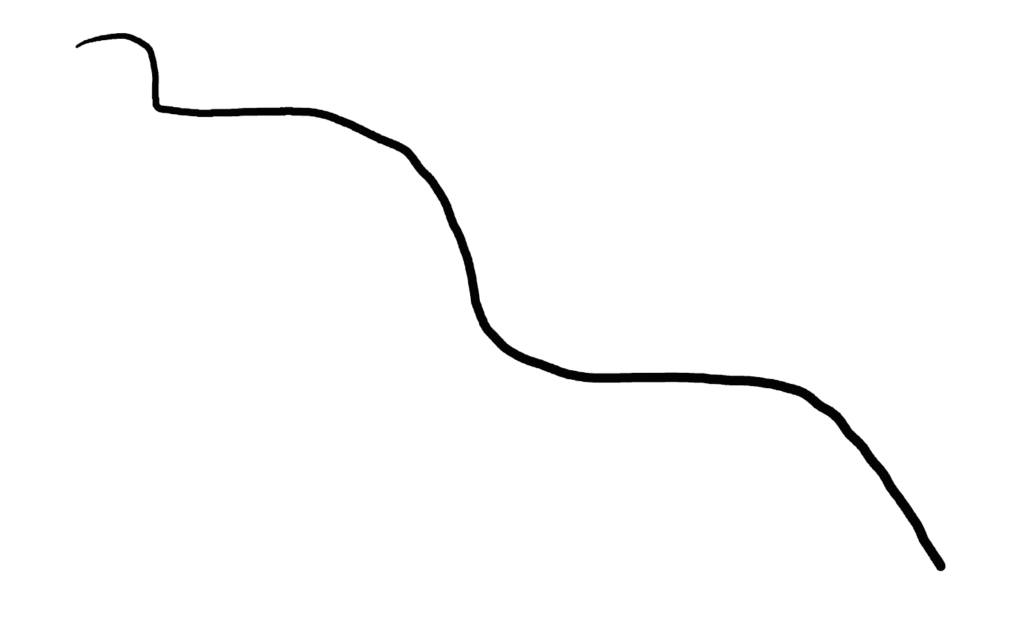
This one scared me a bit because I had to add an external shape to it. It was not hard to make; it was just a simple wiggle I created in my math OneNote and placed. Then I was able to use the fillet tool to mimic the shape. This part was really interesting and much better than in FreeCAD, where I was afraid of making anything more complicated than an oddly shaped triangle, but this was again much more pleasant.
I had some fun with the shape and made it hollow in the sketch just to make my life easier, as I struggled to use the tool that hollows the shape out using the shell tool. Spoiler: this was the only time I used this tool. At other times, what I did was more scuffed, but it works better in my opinion for more complex shapes.
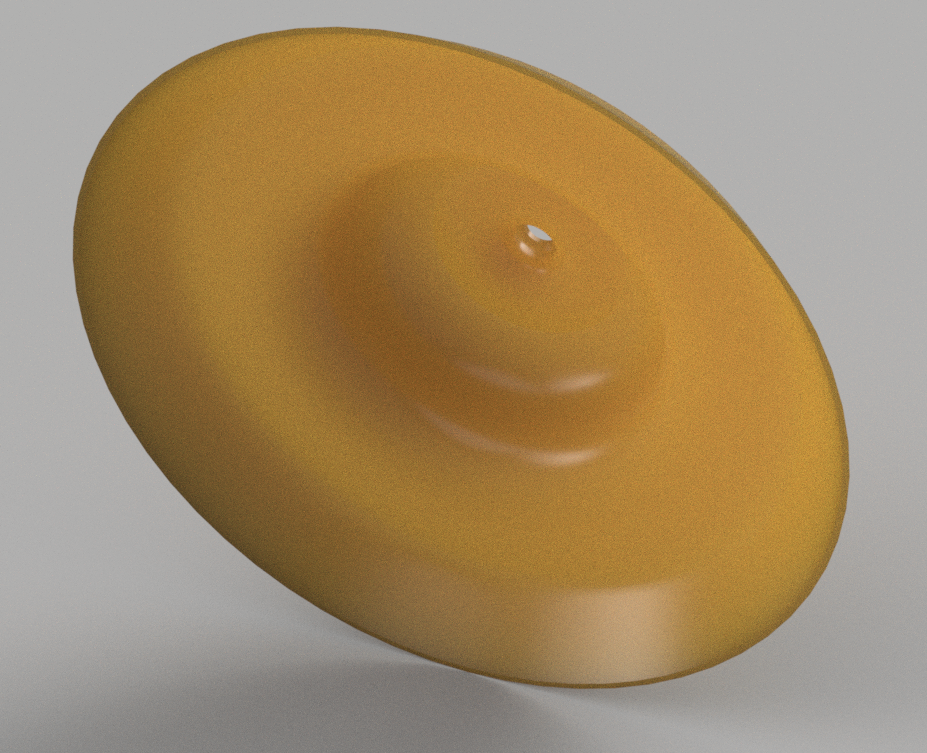
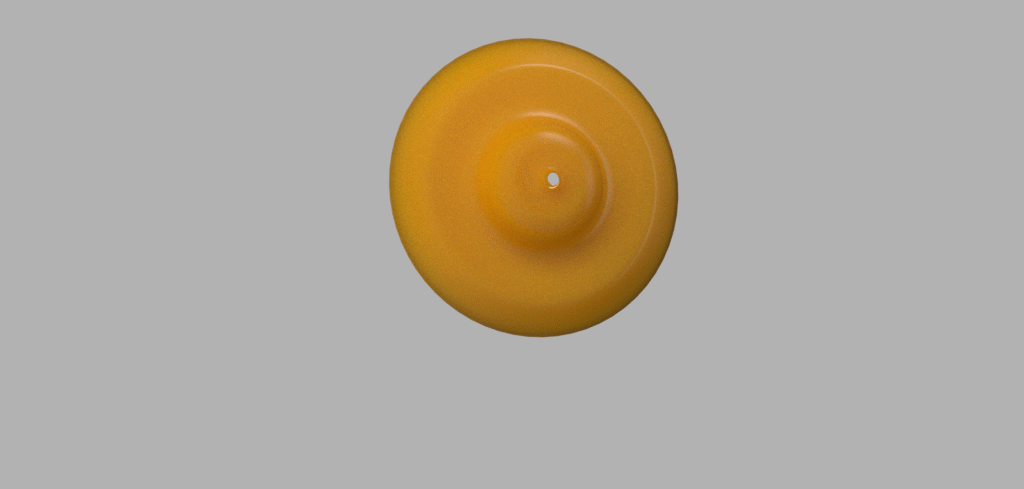
Mystique... red Flask again
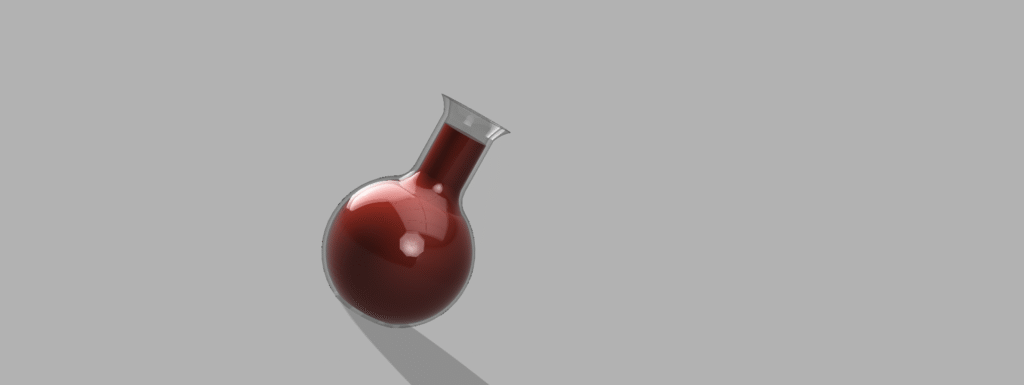
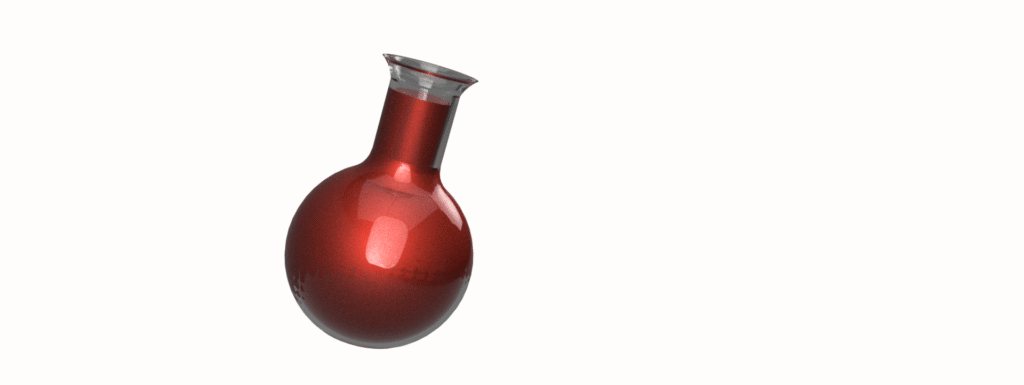
Here are the more difficult parts. For this one, I made it hollow from the start. This was the simplest way of working with object 3 because I would need to fill it. This was a way that would give me more control. There was a lot of trial and error with this shape, but I got it in the end. Then I rotated the image 360. This was problematic, as the two shapes don’t want to work nicely with each other, but in the end, I got it to function.
So I colored the flask clear glass, and then I worked on the inner shape. I wanted to make it a full glass. Because who wants to deal with an empty glass? People often argue whether something is half full or half empty, but the liquid was simply placed inside.
Tip your hat
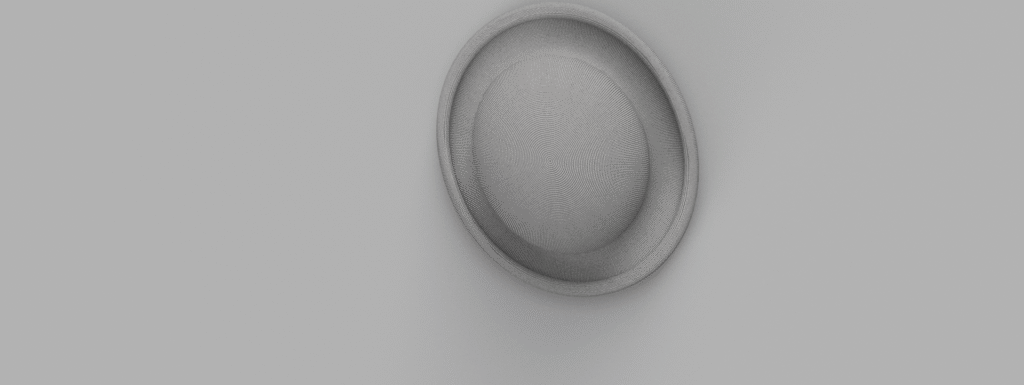
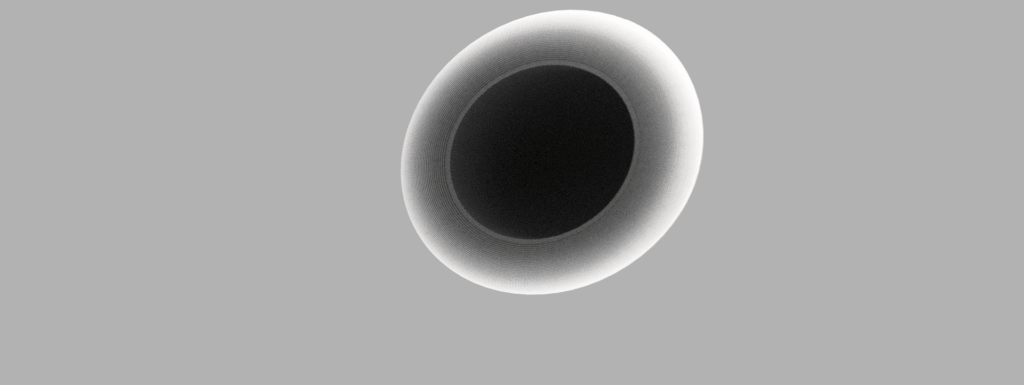
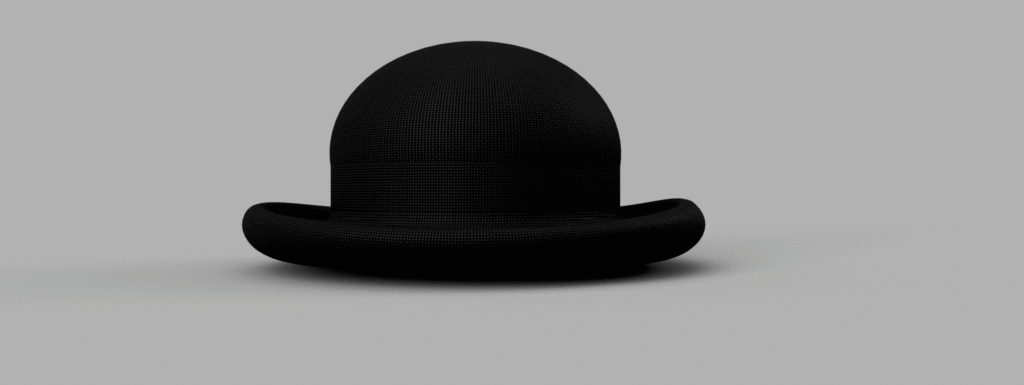
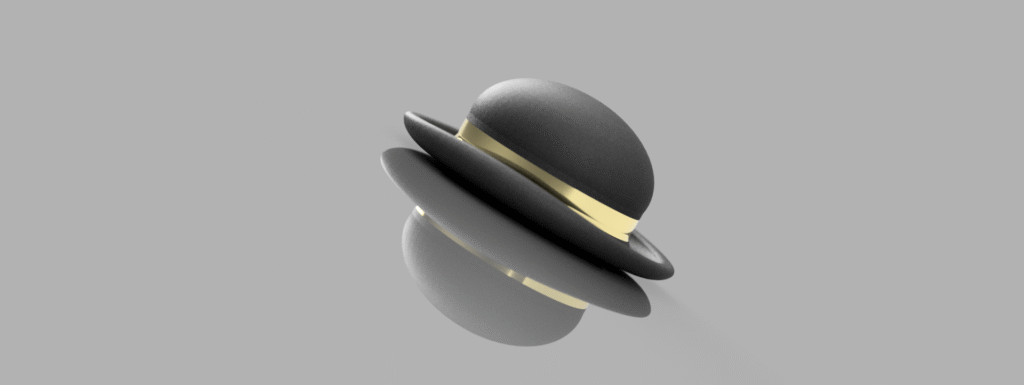
I call this a bowler hat, the scavenger hunt object. I really had to learn the different tools in Fusion. To elongate the shape properly, I had to learn how to “cut” the shape in order for it to have that shape typical of a bowler hat. Compared to TinkerCAD, the shape is easier to form but harder to function. Meaning that it is easier to create a circular hat with a brim, but it is much harder to elongate it and shape the brim. It takes more knowledge of the mechanisms of the platform, but once those are had, the shape is relatively simple to make.
Honestly, the hardest part of creating this shape was rending it. I made the shape and colored it in traditional black fabric, but it became hard to see the actual elements of the shape. This led to me having to “dye” the object white so that you can actually see that I met the requirements of the assignment. However, this was not sufficient, and I had to go further, and edit the settings for the render to ensure that it is clear that the object is hollow, oblong, and that the brim is curved to the correct standard set in the assignment.